El Eje for Chrome carries the same tango knowledge that powers El Eje Player onto the web. Look up any recording in a side panel, follow the lyrics, original and translation, while you watch a tango on YouTube, and identify a track by its sound. The whole library lives inside the extension, so it works offline with no account.
Reference
A side panel that identifies any recording: orchestra, singer, year, key, BPM, mood & lyrics.
Read along
On a YouTube tango, the Spanish + English lyrics follow the music line by line.
Identify
Name a tango playing in a tab by its sound, entirely on your device.
Private
No account, no analytics, no tracking. It keeps working with no internet.
Part 1
Getting started
Two minutes from download to working. The extension installs as an unpacked Chrome build and runs entirely on your machine.
Section 1.1
What it is
El Eje for Chrome is a free, offline companion for tango. It does three things, reference any recording, read & listen along on YouTube, and identify a track by its sound, all built on the same deduplicated tango library as the Mac app.
Section 1.2
Install it
It's distributed as a direct download (no Web Store yet), installed via Chrome's “Load unpacked.”
- Download & unzip the extension from the
El Eje for Chrome page. Keep the unzipped
el-eje-extensionfolder somewhere permanent, moving or deleting it removes the extension. - Open
chrome://extensionsin Chrome (version 114 or newer). - Turn on Developer mode (top-right toggle).
- Click Load unpacked and select the
el-eje-extensionfolder. - Pin El Eje from the puzzle-piece menu so its icon stays on the toolbar.
Section 1.3
Open the side panel
Click the pinned El Eje icon in the toolbar, the side panel opens on the right. On first open it shows a welcome line and your library counts (songs, translations, orchestras, singers), with the search box focused and ready.
Part 2
Look things up
The side panel is a reader for the whole library. Search a name, open a recording, and read everything about it.
Section 2.1
Search & the recording card
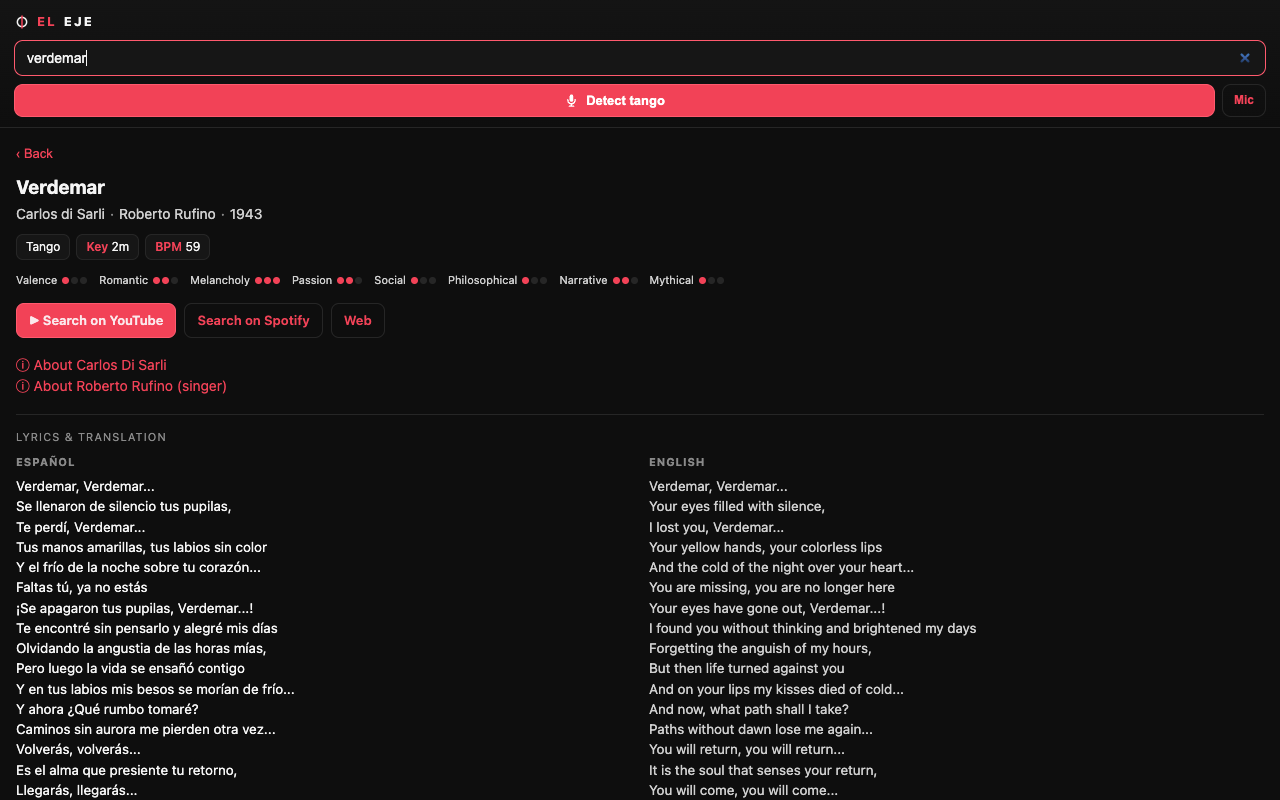
Type a title, orchestra, or singer and click a result to open its card. Here's the card with everything labelled:
 1
2
3
4
5
6
7
1
2
3
4
5
6
7
The side-panel reader, showing the recording card for “Verdemar”.
- 1Search, type a tango, orchestra, or singer; results filter as you type.
- 2Detect tango, identify what's playing in the current tab by its sound (§3.5).
- 3Facts, genre, musical Key, and BPM.
- 4Mood profile, eight dimensions (Valence, Romantic, Melancholy, Passion, Social, Philosophical, Narrative, Mythical), each a small dot meter.
- 5Listen elsewhere, open a YouTube / Spotify / Web search for this recording in a new tab.
- 6About, expand a short bio of the orchestra and the singer.
- 7Lyrics & translation, the Spanish original beside its English translation.
Section 2.2
Lyrics, recordings & tandas
Scroll a recording card for the rest of the picture:
- Lyrics & translation, each Spanish line with its English translation, plus the contributors who made them.
- Other recordings of the same song, the same tango by other orchestras and years; click any to jump to it.
- Suggest a tanda, if the recording belongs to a curated tanda, this button reveals that set, with each track listed and the current one marked “here.” Tap ↻ to see another tanda it's in.
Section 2.3
Right-click lookup & source links
- Right-click lookup. Select a song title (or an orchestra/singer name) on any web page, right-click, and choose “Look up … in El Eje.” The side panel opens pre-searched.
- Source links. Every card has ▶ Search on YouTube, Search on Spotify, and Web buttons (marker 5 above) that open a search for that recording in a new tab. No audio is bundled in the extension.
Part 3
On the web
El Eje also works on the page, most of all on YouTube, where it follows the lyrics and lets you fix and improve matches.
Section 3.1
Follow lyrics on YouTube
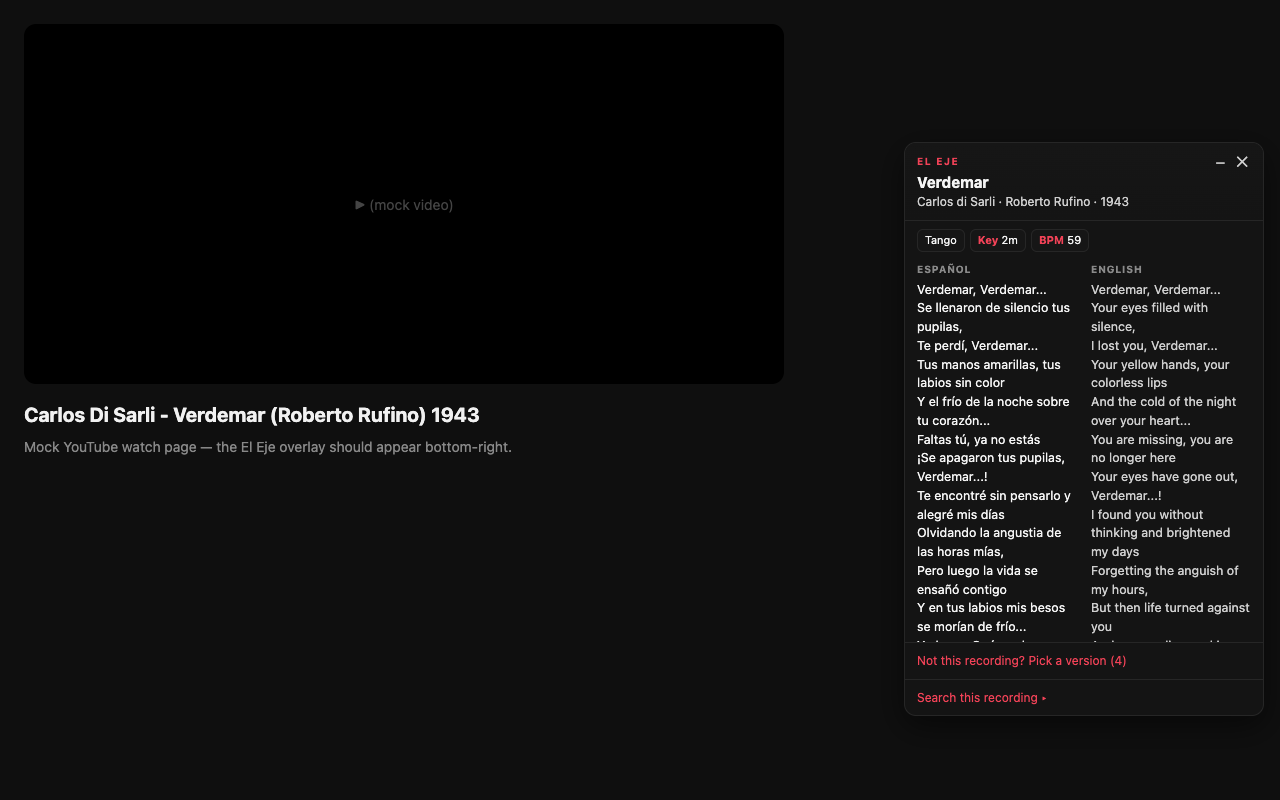
Open a tango on youtube.com. El Eje reads the title and channel, matches it to the library (it even recognises “- Topic” / auto-generated channels), and shows a card in the corner that follows the music:
 1
2
3
4
5
1
2
3
4
5
The follow-along overlay on a YouTube tango video.
- 1Auto-matched card, El Eje read the title + channel and found the recording, with its facts.
- 2Collapse / hide, shrink the card to a pill (–) or hide it for this video (✕).
- 3Follow-along lyrics, Spanish + English, with the current line highlighting as the video plays.
- 4Pick a version, when the title is ambiguous, choose the right take (§3.2).
- 5Search this recording, jump out to a source.
Section 3.2
Pick the right version & report mistakes
When a title is ambiguous, you decide what's playing, and corrections help everyone.
- Confirm: click ✓ This is the track to lock the match for that page (it loads instantly next time).
- Fix: click Not this, search and pick the right recording.
- Not a tango: click Not a tango to keep the overlay quiet on that page.
- Report: the ✗ button in the card header reports a wrong or missing match, type what it should be, or leave it blank to just flag it.
Section 3.3
Contribute timings & lyric edits
You can tap along to time the lyrics for a video, and fix the lyric text, these improve the follow-along for everyone.
- On the card, click ♪ Timing to open the timing panel.
- Play the video; as each line begins, press Space (or click TAP the next line). Use ↺ / Backspace to undo a mis-tap.
- Click ✓ Save. Your timing now drives the highlight (badge “♪ your timing”).
- To fix the words, click ✎ Lyrics, edit the paired Spanish/English rows, then ✓ Save lyrics. Export edits downloads your changes.
Section 3.4
Hover-to-learn
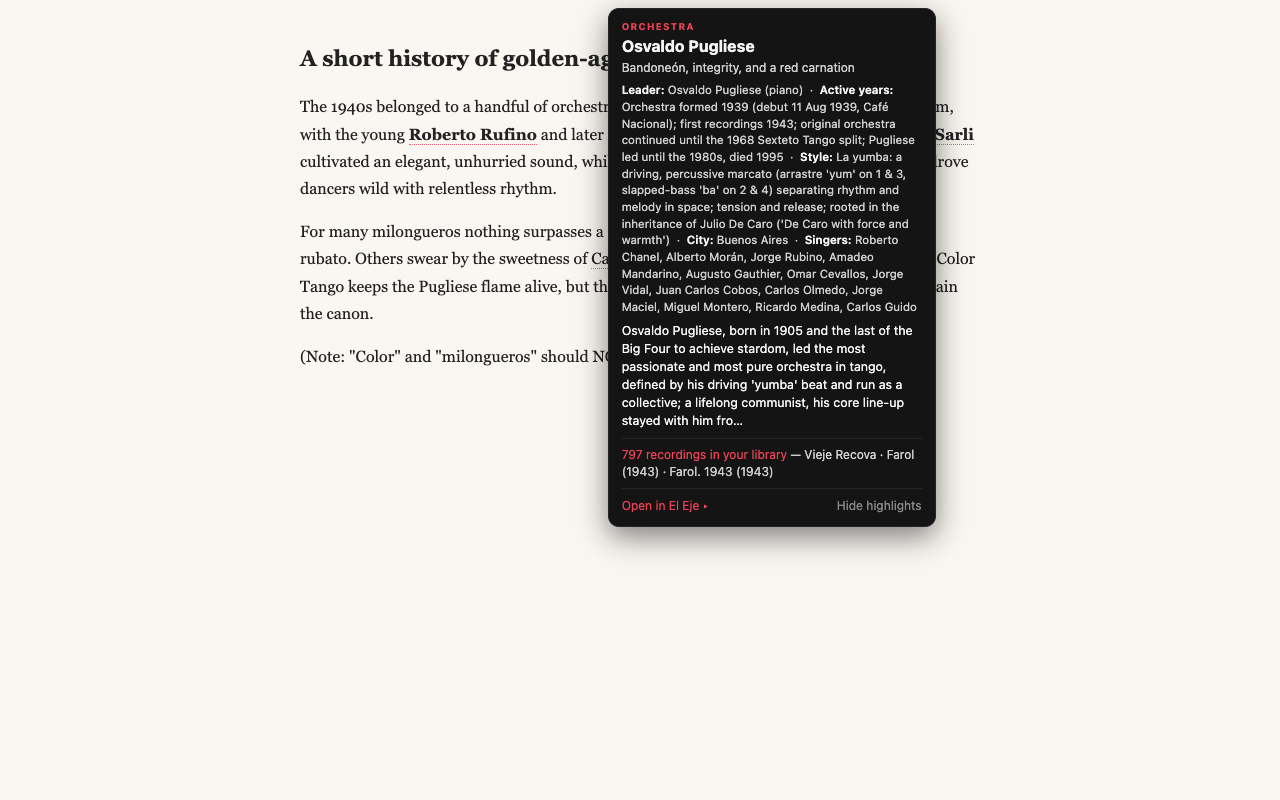
As you browse any page, El Eje quietly underlines known orchestra and singer names with a dotted coral line. Hover one (or click it) for a card:
 1
2
3
4
5
1
2
3
4
5
A hover card for an orchestra, drawn over any web page.
- 1Name + kind, the orchestra or singer you hovered, with a coral “ORCHESTRA”/“SINGER” label.
- 2Key facts, leader, active years, style, city, singers.
- 3Bio, a short history.
- 4In your library, how many of their recordings you already have.
- 5Open in El Eje (jump to the side panel) or Hide highlights (turn the underlines off).
Section 3.5
Detect a tango by sound
Don't know what's playing? El Eje can identify it by listening, entirely on your device.
- With audio playing in a tab, open the side panel and click Detect tango (marker 2 in §2.1), or click the floating Detect tango pill that appears on a playing page.
- The first time, Chrome asks permission to capture the tab's audio, choose Allow. (Nothing is recorded until you click Detect.)
- It listens for a few seconds; on a confident match the recording opens with 🎵 Identified by sound. If unsure it offers closest matches; if it can't tell, try again near the start of the track.
- To identify music in the room (from a phone or speaker), click Mic instead.
◐ Good to know
The sound index covers each recording's first ~40 seconds, so detection works best near the beginning. El Eje would rather say “couldn't identify” than guess wrong. On a page it recognises, click ✓ This is what's playing so it opens instantly next time.
Part 4
Privacy
How your data is handled, short version: it isn't.
Section 4.1
Offline & private
The entire library, titles, orchestras, singers, key/BPM, mood, lyrics and translations, ships inside the extension and is read locally. There's no account, no analytics, and no tracking; El Eje makes no network requests on its own. The only time a tab opens is when you click a Search link, and audio detection runs on your device, nothing is uploaded. It keeps working on a plane or in a basement milonga.
Get El Eje for Chrome
Download it free, or tell me what would make it more useful for your dancing or DJing.